# Onboarding
## 1. Register:
There are 2 types of business for **Individuals** and **Businesses**, partners to choose the right type of business and register.
### 1.1 Register account for individuals
Register account for individuals
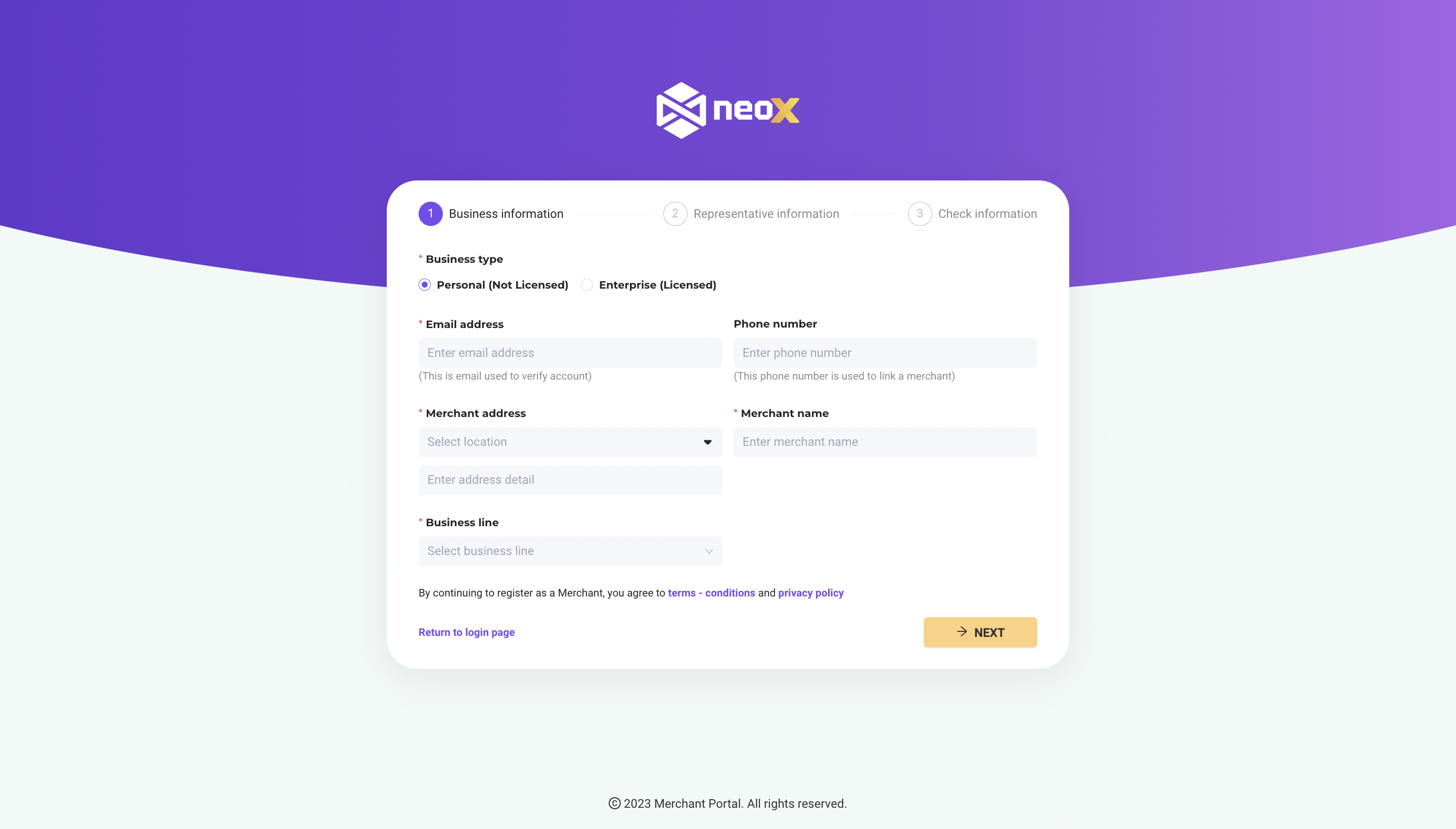
**Step 1:** Go to and select "Register now".
**Step 2:** Fill in all relevant information in the "Business Information" section.
* **Type of business:** Choose an individual business type (without a business registration license)
* **Email:** Used to log in to the account to look up account information, verify account information, receive promotions, and change the account login password later.
* **Phone number:** This phone number to contact the store.
* **Store Address:** Select the current business address.
* **Store name:** Enter the name of the current store you want to register.
* **Line of business:** Choose a business line
* By continuing to register as a Merchant, you agree to the terms - conditions and privacy policy
After completing the information, click the "Continue" button to register your account information or click the "About login page" button to return to the homepage.
**Step 3:** Upload a photo of your ID and a portrait of the Representative.
* I**mage of Identification:** Enter or drag the file into this section to upload two photos of the front and the deep side.
* **Portrait photo (1 file):** Click or drag the file to this section to upload
* Click on the box “I am not a robot.”
***\*Note:*** Photos taken and uploaded must be clear, not blurred, with no lost corners, and not covered.
Click the “Continue” button to move to the next step, click the “Back” button to return to the business information entry (if any corrections are made), or click the “Back to log in page” button to return home page.
**Step 4:** Check personal information, select “Gender,” and click “Register”.
**Step 5:** After reviewing the registration information, the system will send an email, "Account activation" click "here" to switch to the activation page and create a new password.\ **Step 6:** The system will send an email, "Successful account registration," containing the Member's information.
**Step 7:** Log in to Merchant Portal Website and enter your email and password (newly created). Royal registration.
###
### 1.2. Register account for businesses
Register account for businesses
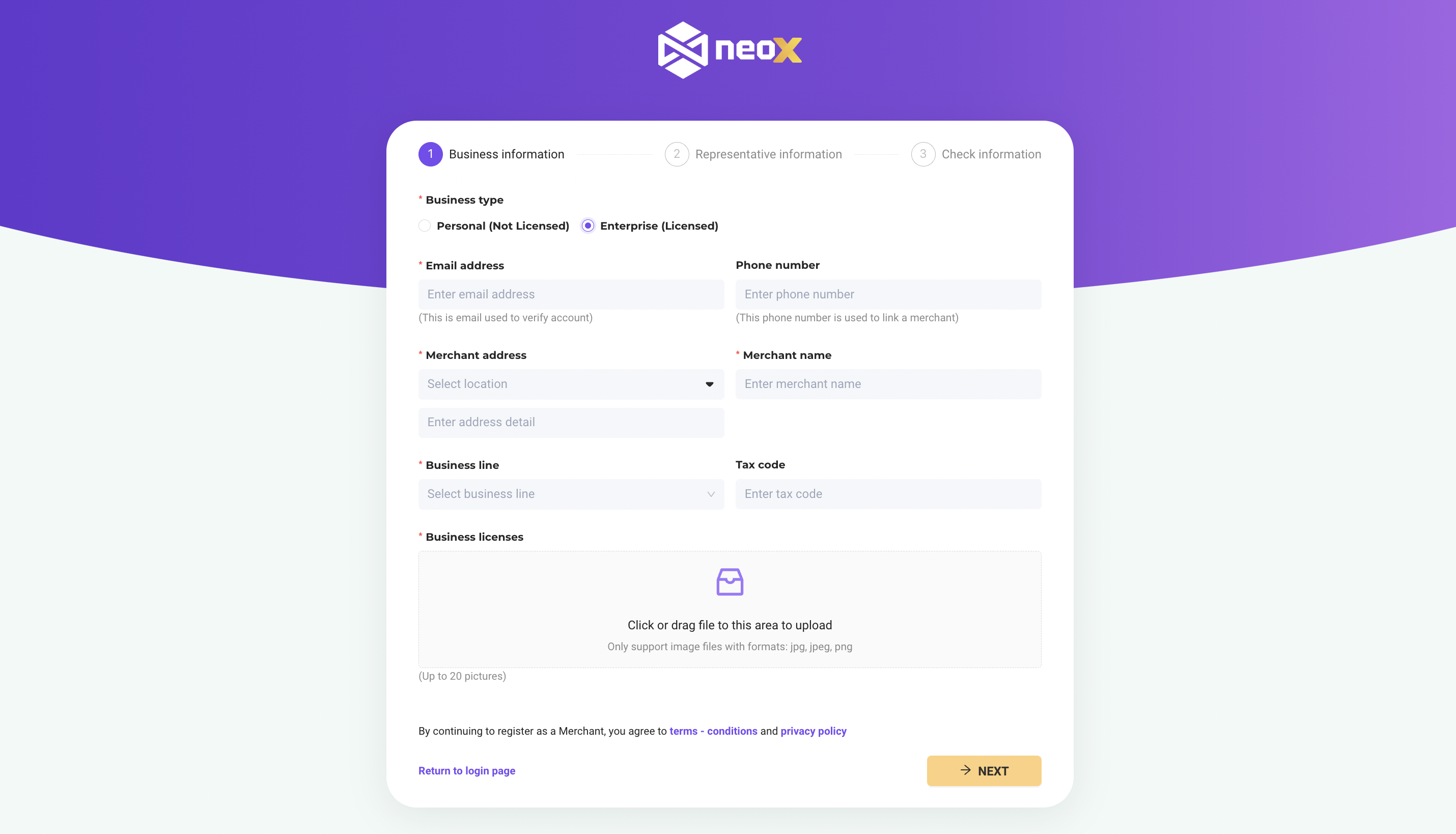
**Step 1:** Go to and select "Register now".
**Step 2:** Fill in the content in the "Business Information" section.
* Business type: Select business type Enterprise (with business registration license)
* Email: Used to log in to the account to look up account information, verify account information, receive promotions, and change the account login password later.
* Phone number: This phone number is used to contact the store.
* Store address: Choose the same address listed on the Business Registration Certificate or the current business address.
* Store name: Fill in the name of the Company/Household Business/Store according to the name stated on the Business Registration Certificate
* Line of business: Choose a business line
\*For other business lines: Enter another industry name
* Tax code: Enter the tax code on the business license
* Business license: Click or drag the file into the area to upload (Maximum 20 images)
* By registering with Merchant, you agree to the terms - conditions, and privacy policy.
After completing the information, click the "Continue" button to register your account information or click the "About login page" button to return to the homepage.
**Step 3:** Upload a photo of your ID and a portrait of the Representative.
* Photo ID: Click or drag the file into this section to upload two front and back photos.
* Portrait (1 file): Click or drag the file to this section to upload
* Click on the box “I am not a robot.”
***\*Note:** Photos taken, uploaded must be clear, not blurred, not lost, not covered. Click the "Continue" button to move to the next step, or click the "Back" button to return to the business information (if any adjustment) or click the "Back to Login page" button to return home page.*
**Step 4:** Check personal information, select "Gender" and click "Register".
**Step 5:** After reviewing the registration information, the system will send an email "Activate the account", click "here" to switch to the activation page and create a new password.
**Step 6:** The system will send an email "successful account registration" containing partner information.
**Step 7:** Login partner into the web Merchant Portal to enter email information and password (newly created). Complete registration.
## 2. Sign-in:
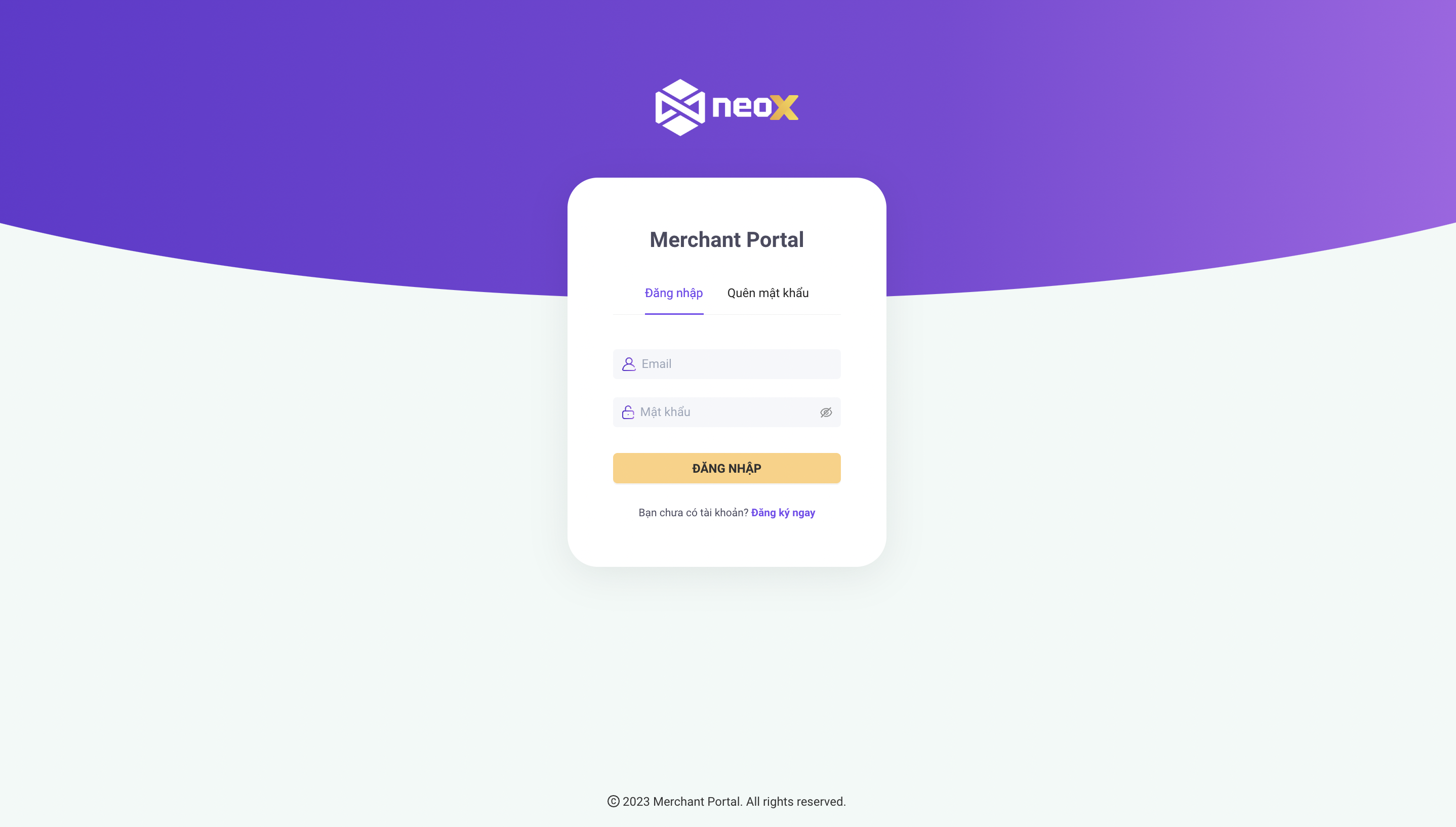
Go to , choose "Login". Use registered emails and passwords to log in.